Setup Your eSIM in
Under 60 Seconds
Follow these steps exactly to get connected. Most activation issues are resolved by correctly configuring your Cellular / Mobile Data settings.
Scan the QR Code
Install eSIM on your device
Open your phone's Settings app and navigate to:
Select "Use QR Code" and center our QR code in the camera frame to install.
Turn On eSIM & Data Roaming
Critical for international use
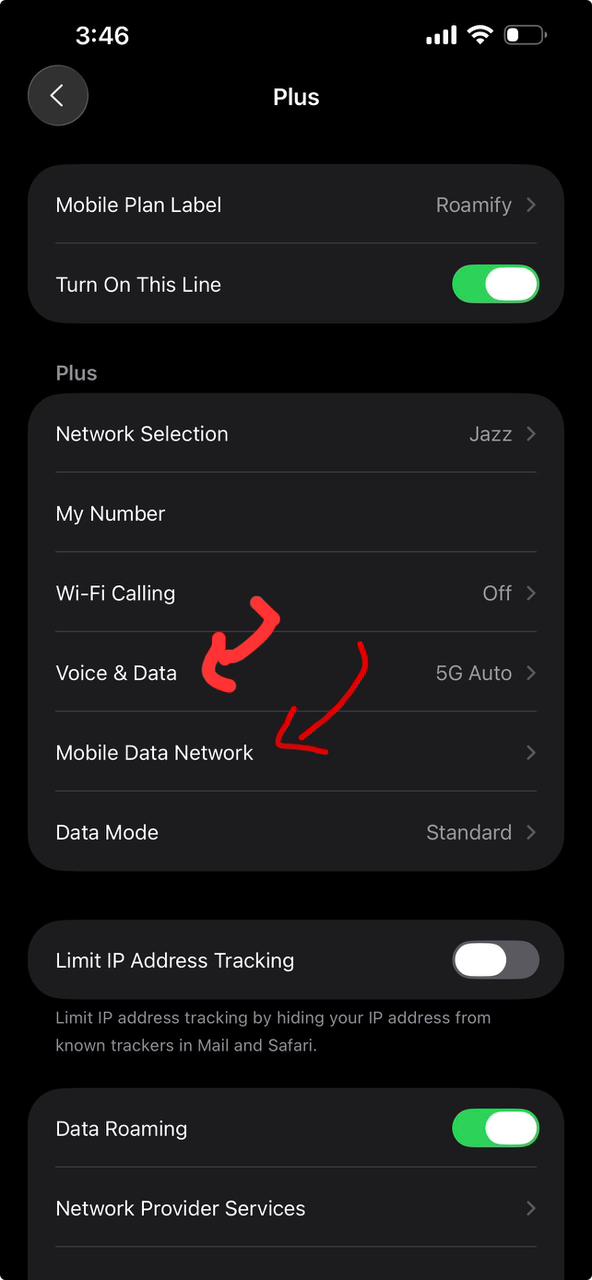
After installation, select the new eSIM line. Make sure the 'Turn On This Line' switch is enabled. Then scroll down and enable 'Data Roaming'.
Data Roaming must be ON— this is the #1 reason eSIMs don't connect abroad. Without it, you won't get signal in the destination country.
APN Configuration
Select LTE & Go Online
Final step — you're almost there!
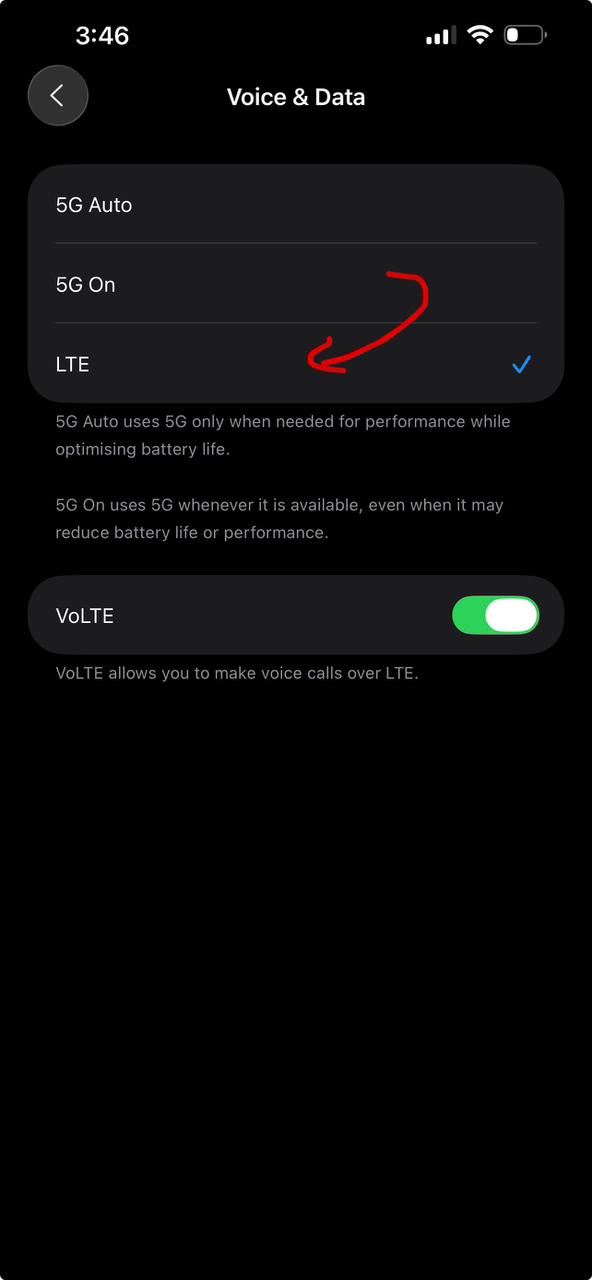
Navigate to Voice & Data and select LTE. Enable VoLTE for best voice call quality over LTE networks.
When you land at your destination, the eSIM will automatically connect to the strongest local 4G/5G network. It may take 2–3 minutes on first connection.
Pro Tips
Quick tips for the smoothest experience
Common Issues & Quick Fixes
90% of issues are solved by enabling Data Roaming. Check the FAQ below for other fixes.
eSIM installed but no signal?
Make sure Data Roaming is turned ON for the eSIM line. Go to Settings → Cellular → select your eSIM → toggle Data Roaming. This is the #1 cause of connection issues.
Getting "No Service" after landing?
It can take 2–3 minutes for the eSIM to register on the local network after landing. If it takes longer, toggle Airplane Mode on and off, or restart your phone.
Data not working despite signal bars?
Go to Cellular → Cellular Data and make sure your eSIM line is selected as the data line. Also check that "Allow Cellular Data Switching" is turned OFF to prevent data going through your Pakistani SIM.
What APN should I use?
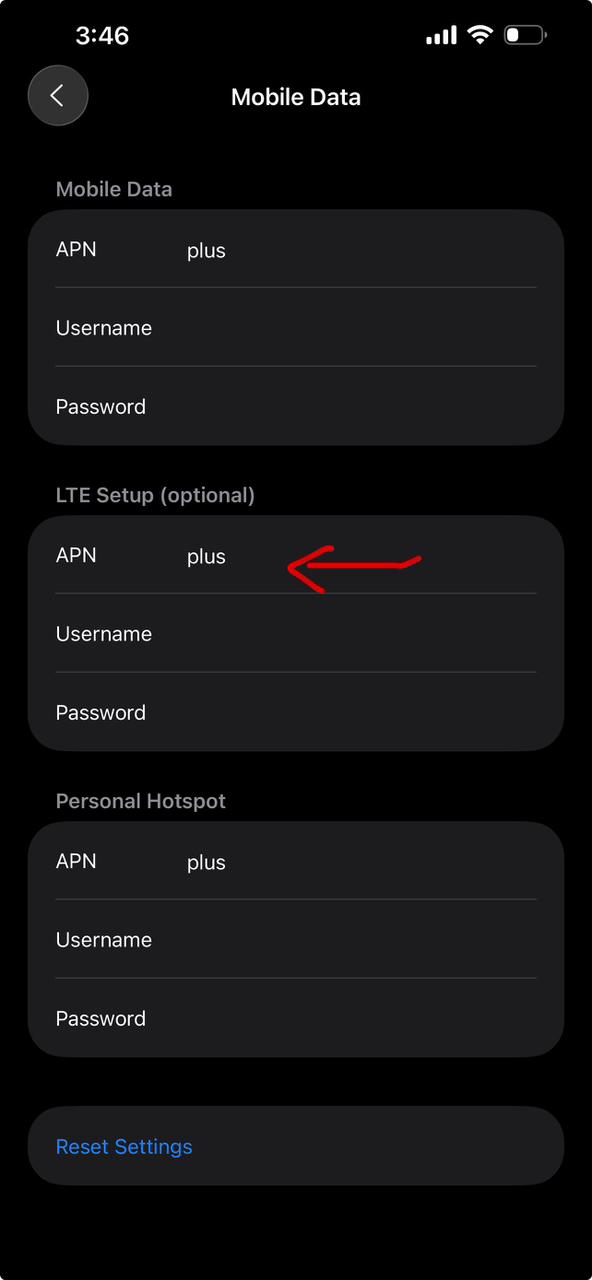
Set the APN to "plus" (lowercase). Leave Username and Password fields empty. Go to Cellular → eSIM line → Mobile Data Network to configure this.
Should I remove my Pakistani SIM?
No! Keep your Pakistani SIM active for calls and SMS. Just set the eSIM as your primary data line. Your phone supports dual SIM — both work simultaneously.
Can I use hotspot/tethering?
Yes, all Axon eSIM plans include unlimited hotspot. Make sure to also set the APN to "plus" under Personal Hotspot settings if prompted.
Don't Delete Your eSIM!
If your eSIM isn't connecting, do not delete itfrom your device. Contact our 24/7 WhatsApp support team — we'll diagnose the issue live or issue a full refund.